You're traveling, and the only thing less reliable than the hotel Wi-Fi is the weather forecast. Whether you're trying to complete a daily challenge or join friends for a quick match, a bad connection is a dealbreaker. In these moments, the powerful device in your pocket can be your best gaming accessory: your smartphone.
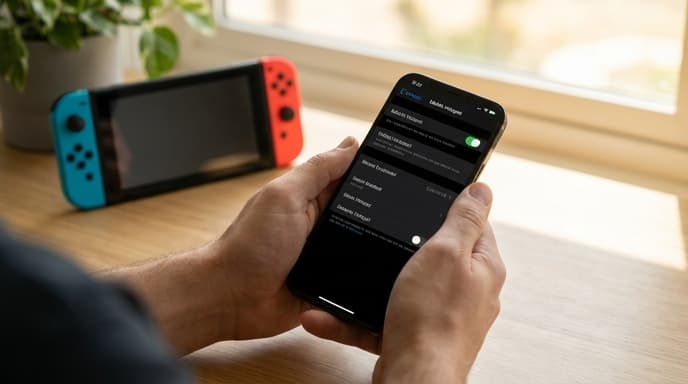
Using your phone as a mobile hotspot, also known as tethering, can provide a stable and often faster connection than overloaded public networks. It's easy to set up, but a few key settings and habits can make the difference between a smooth experience and a laggy, expensive one.
How to Turn On Your Mobile Hotspot
First, you need to enable the feature. The process is simple on both major mobile operating systems.
On iOS (iPhone):
- Go to Settings > Personal Hotspot.
- Toggle on Allow Others to Join.
- Set a secure password under Wi-Fi Password.
- Your phone's Wi-Fi network name will be displayed on this screen.
On Android:
- Go to Settings > Network & internet > Hotspot & tethering. (The exact path may vary slightly by manufacturer).
- Tap on Wi-Fi hotspot.
- Toggle it on.
- You can view and change the hotspot name and password on this screen.
Once enabled, you can connect your console, PC, or Steam Deck to it just like any other Wi-Fi network.
Tips for a Better Gaming Connection
Just turning on the hotspot is the first step. To reduce lag and ensure stability, try these optimizations:
- Use 5GHz When Possible: In your Android hotspot settings, you may see an option for 'AP Band'. If you can, choose the 5GHz band over the 2.4GHz band. It offers faster speeds and less interference, though with a slightly shorter range. Keep your console and phone close together. iPhones typically manage this automatically.
- Plug In Your Phone: Running a hotspot is a major battery drain. Keep your phone plugged into a charger to avoid it dying mid-game.
- Position for a Strong Signal: Your hotspot is only as good as your phone's cellular connection. Place your phone near a window or in a spot where it gets the most service bars.
- Use USB Tethering for PC: If you're gaming on a laptop, connecting your phone directly with a USB cable (USB tethering) often provides a more stable and slightly faster connection than Wi-Fi. It also charges your phone at the same time.
- Disconnect Other Devices: Make sure no other devices are connected to your hotspot, as they can consume bandwidth with background updates and notifications.
Keep an Eye on Your Data Usage
This is the most important part. Online gaming itself is not a massive data hog—a typical match might use 100-200 MB per hour. The real danger comes from automatic updates.
Turn Off Automatic Updates: Before you connect, go into your console or PC settings and disable automatic game and system updates. A single large patch can wipe out gigabytes of your monthly data allowance in minutes.
Monitor Your Usage: Your phone has a built-in data usage monitor in the settings. Check it before and after your gaming session to get a clear idea of how much data you've consumed. Many carrier apps also provide real-time tracking.
Know Your Plan: Understand your mobile plan's limits. Do you have a specific cap for hotspot data? Does your speed get throttled after a certain threshold? Knowing these details will help you avoid surprise charges on your next bill.
Frequently Asked Questions
Is using a mobile hotspot bad for my phone?
It's a demanding task that generates heat and uses the battery, but it's not inherently harmful. It's a standard feature designed to be used. Just make sure your phone has some ventilation and isn't buried under a pillow.
Will my ping be high when gaming on a hotspot?
It depends on your cellular network's quality. In an area with good 4G or 5G coverage, your latency (ping) can be surprisingly low and very playable for many games. It may not be ideal for highly competitive, split-second shooters, but it's more than adequate for most online experiences.
Can my carrier charge me extra for using a hotspot?
Some mobile plans have separate, smaller data allowances for hotspot use or may charge extra fees. Always check the specifics of your plan before relying on this feature heavily.
Key Takeaways
- Enable the mobile hotspot feature in your phone's settings to create a personal Wi-Fi network.
- For a better connection, use the 5GHz band if available, keep your phone plugged in, and position it for a strong cell signal.
- The biggest threat to your data plan is automatic updates. Disable them on your console or PC before connecting.
- Monitor your data usage closely through your phone's settings or carrier app.
- Understand your mobile plan's rules regarding hotspot data to avoid extra charges.
Related Reading
- A Traveler's Guide to eSIMs for Low-Lag Gaming Abroad
- How to Safely Pack Your Gaming Gear for a Trip
- Changing Your Digital Store Region: What to Know Before You Try