You've successfully connected your laptop and phone to the hotel Wi-Fi by clicking 'Agree' on a pop-up login page. But when you try to connect your PlayStation, Xbox, or Switch, you hit a wall. The console sees the network, but it can't open the special login page, called a captive portal, leaving you stuck offline.
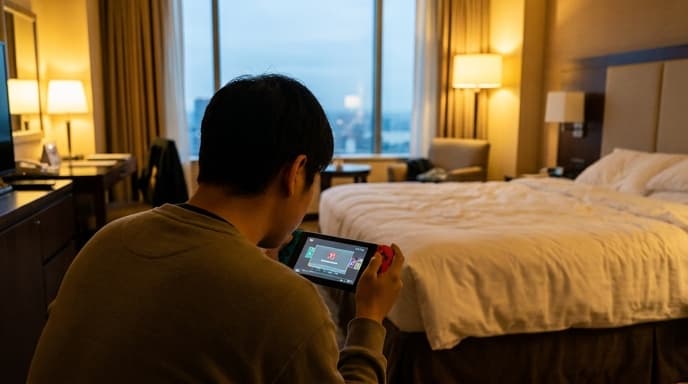
This is a common frustration for traveling gamers. Game consoles don't have full-featured web browsers designed to handle these portals. Fortunately, there are several reliable ways to get around this problem and get you into your game.
Method 1: Try the Console's Hidden Browser
Sometimes, the simplest solution works. Console operating systems have gotten better at detecting captive portals. Follow these steps first:
- Go to your console's network settings and connect to the hotel's Wi-Fi network.
- It will likely say the connection failed but that an action is required. Stay on this screen.
- Look for a button or prompt like 'Test Connection' or 'More Information'. On some systems, this will trigger a basic browser to open, displaying the login page.
- If the page loads, enter the required information (room number, name, etc.) and accept the terms.
If this doesn't work, or no browser appears, it's time to move on to a more reliable method.
Method 2: Share Your Laptop's Connection
This is one of the most effective workarounds. You'll use your laptop as a bridge between the hotel Wi-Fi and your console. You will need your laptop and an Ethernet cable.
On Windows:
- Connect your laptop to the hotel Wi-Fi and complete the login process through its browser.
- Plug one end of an Ethernet cable into your laptop and the other end into your console.
- On your laptop, go to Settings > Network & Internet > Mobile hotspot.
- Instead of turning on the hotspot, look for a related setting called 'Share my Internet connection from'. Choose 'Wi-Fi' and 'Share over' 'Ethernet'.
- Turn on the Mobile hotspot. Your laptop is now sending the authenticated internet connection through the Ethernet cable directly to your console.
On macOS:
- Connect your Mac to the hotel Wi-Fi and log in.
- Plug in your console using an Ethernet cable (you may need a USB-C to Ethernet adapter for modern MacBooks).
- Go to System Settings > General > Sharing.
- Turn on Internet Sharing.
- In the options, choose to share your connection from 'Wi-Fi' to computers using 'Ethernet'.
Your console should now automatically connect to the internet via the wired connection, completely bypassing the captive portal.
Method 3: Call the Front Desk
It sounds too simple, but sometimes the hotel's IT support can help directly. Call the front desk and explain that you're trying to connect a game console that doesn't have a web browser. They may be able to manually add your device's MAC address to their approved list.
You can find your console's MAC address (a unique hardware identifier) in the advanced network settings. Be ready to read it to them over the phone.
Frequently Asked Questions
What is a MAC address?
A Media Access Control (MAC) address is a unique code assigned to every internet-capable device. It's like a serial number for its network hardware. Your console has one for its Wi-Fi adapter and one for its Ethernet port.
Is using a travel router a good option?
Yes, for frequent travelers, a dedicated travel router is an excellent tool. You connect the router to the hotel Wi-Fi, authenticate through the captive portal once on your phone or laptop, and then all your devices (console, phone, etc.) can connect to your router's personal Wi-Fi network without needing to log in again.
Will the connection speed be slow if I share it from my laptop?
You will be limited by the hotel's overall internet speed, but sharing the connection itself doesn't typically add significant lag. For gaming, it's a much better option than not being able to connect at all.
Key Takeaways
- Game consoles often fail to connect to hotel Wi-Fi because they can't load the special login pages (captive portals).
- First, try to trigger the console's basic web browser from the network connection test screen.
- The most reliable method is to connect your laptop to the Wi-Fi, then share its connection with your console via an Ethernet cable.
- Calling the hotel's support desk and asking them to manually authorize your device's MAC address can also work.
- For frequent travelers, a travel router simplifies the process of connecting multiple devices to a captive portal network.
Related Reading
- The Traveler’s Guide to Power Adapters for Laptops and Consoles
- Using Your Phone as a Mobile Hotspot for Gaming on the Go
- How to Use a VPN for Travel and Gaming Abroad