Getting lost in a new city can be part of the adventure, but usually, you just want to find your hotel or the nearest train station. Relying on your phone's data for maps can be risky due to spotty coverage or expensive international roaming charges. The solution is simple: download your maps before you go.
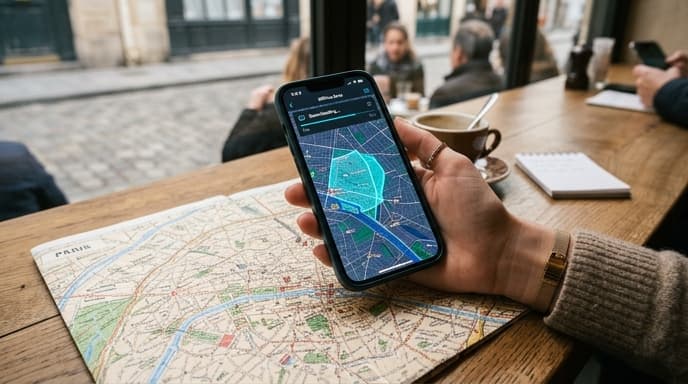
Most major map applications, including Google Maps, allow you to save large areas directly to your phone. This means you can still search for locations, get driving directions, and see your own GPS position on the map, all without using a single byte of data. It's an essential prep step for any trip.
Why You Should Always Download Maps
The benefits of having offline maps go beyond just saving money on data. It's a fundamental part of a reliable travel toolkit.
- It saves money: Avoid costly international data roaming fees from your carrier.
- It works anywhere: You'll have a functional map in subways, rural areas, or anywhere else with no cellular signal.
- It's reliable: Your navigation won't be interrupted by a dropped connection.
- It saves battery: Searching for a signal can drain your phone's battery. Using offline maps with cellular data turned off is more efficient.
How to Download Offline Maps in Google Maps
Google Maps is one of the most popular navigation apps, and its offline feature is easy to use. Make sure to do this over a Wi-Fi connection to avoid using your mobile data for the download.
Step 1: Open Google Maps and Search
Open the app and search for the city, region, or country you'll be visiting. For example, search for "Paris" or "Tokyo".
Step 2: Access the Download Option
Once the location is on your screen, tap on the name of the place at the bottom of the screen to bring up its information card. Scroll through the options and look for a button labeled "Download."
Step 3: Select the Area and Download
Google Maps will now show you a rectangular frame on the map. You can pan and zoom to adjust the area you want to save. The app will also show you an estimate of how much storage space the map will require. Once you've framed the desired area, tap "Download" again.
Step 4: Access Your Saved Maps
To find your downloaded maps later, tap your profile picture or initial in the top-right corner of the app and select "Offline maps." Here you can see all your saved maps, rename them, update them, or delete them to free up space.
Tips for Using Offline Maps
To get the most out of your downloaded maps, keep a few things in mind.
- Download before you go: The files can be large, so always download over Wi-Fi before you leave for your trip.
- Update your maps: Offline maps expire after a certain period (usually a year). If you're using an old map, the app will prompt you to update it.
- Keep your phone charged: While it saves battery compared to using data, continuous GPS use will still drain your battery. A portable power bank is a great travel companion.
- Offline limitations: Remember that offline maps won't have live traffic data, walking directions, or transit information in some apps. You can get driving routes, but not real-time updates.
Frequently Asked Questions
How much storage space do offline maps take?
It varies depending on the size and density of the area. A map of a large city like London or New York might take up a few hundred megabytes. A map of a smaller town might only be 50 MB. The app will always tell you the estimated size before you download.
Can I get turn-by-turn directions offline?
Yes, for driving directions, turn-by-turn navigation works perfectly offline within the area you've downloaded. However, public transit, cycling, and walking directions are often limited or unavailable without a data connection.
Do I need to turn off my data for it to work?
No, the app is smart enough to use the offline map when it can't get a signal. However, if you want to be certain you're not using any data, you can put your phone in Airplane Mode and just turn on GPS.
Key Takeaways
- Downloading maps before you travel allows you to navigate without a data connection.
- This saves money on roaming fees and ensures you have a map in areas with no signal.
- In Google Maps, search for a location, tap its name, and select the 'Download' option.
- Offline maps allow for GPS tracking and driving directions but may lack live traffic or walking routes.
- Remember to download maps over Wi--Fi and keep your device charged.
Related Reading
- How to Use a VPN for Travel and Gaming Abroad
- The Traveler's Guide to Power Adapters for Laptops and Consoles
- How Does Robux Work? A Guide to Roblox's Currency