There are few things more frustrating than being deep in a competitive match or a dramatic story moment, only to have a notification slide onto your screen, blocking your view and breaking your immersion. While you can manually turn off notifications, Windows 11 has a much smarter way to handle it: Focus sessions.
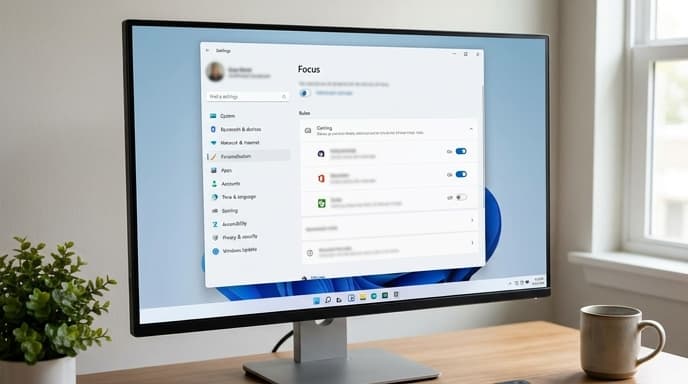
This feature, previously known as Focus Assist, can automatically detect when you're playing a game and silence all non-critical notifications for you. Setting it up takes two minutes and will save you from countless interruptions.
What Is the 'Focus' Feature in Windows 11?
Focus is Windows 11's built-in tool for managing notifications and minimizing distractions. You can turn it on manually for a set period, or you can create automatic rules that activate it under specific conditions. By default, one of those conditions is when you're playing a game in full-screen mode. All you need to do is make sure the rule is turned on.
How to Automatically Block Notifications While Gaming
Follow these simple steps to configure Focus to work with your games.
- Open the Settings app. You can do this by pressing the Windows key + I.
- In the Settings menu, click on System from the left-hand sidebar.
- Find and click on the Focus option.
- Scroll down to the section labeled Automatic rules.
- You will see a list of potential rules. Find the one that says When I'm playing a game.
- Click on this rule to see its options, and make sure the toggle at the top is turned On.
- You can also set the focus level for this rule. For maximum silence, ensure it is set to 'Priority only' or 'Alarms only'.
That's it. Now, whenever you launch a game and it runs in full-screen exclusive mode, Windows will automatically activate Focus and hide notifications from apps like Mail, Teams, and other third-party programs. When you exit the game, your notifications will return to normal.
Manually Starting a Focus Session
If you play games in windowed mode or just want to ensure you're not disturbed for a while, you can also start a Focus session manually. The easiest way is through the notification center.
- Click on the date and time in the taskbar to open the notification center.
- At the top, you'll see the Focus button.
- Click it to start a default 30-minute session. You can also click the small arrow next to the time to choose a different duration.
This is great for times when you need to concentrate on any task, not just gaming.
Frequently Asked Questions
Why am I still seeing some notifications?
By default, Focus allows 'Priority' notifications to come through. You can customize what counts as a priority notification within the Focus settings page. You can also change the automatic rule to use 'Alarms only' to be even stricter.
Does this work for all games?
The automatic rule works most reliably for games that run in full-screen exclusive mode. For games that run in borderless windowed mode, it might not always trigger automatically. In those cases, starting a Focus session manually is the best workaround.
Does this improve game performance?
While its main purpose is to reduce distractions, preventing background apps from creating pop-ups can free up a very small amount of system resources, so it certainly doesn't hurt performance.
Key Takeaways
- Windows 11's 'Focus' feature can automatically silence notifications when you're gaming.
- To enable it, go to Settings > System > Focus and turn on the automatic rule for 'When I'm playing a game'.
- This feature works best with games running in full-screen mode.
- You can customize which notifications, if any, are allowed to break through during a session.
- For windowed games or other tasks, you can manually start a Focus session from the notification center.
Related Reading
- How to Use Focus Modes to Reduce Distractions on Your Phone
- Getting More FPS: How to Optimize Discord for Gaming
- How to Find and Remove Bloatware From Your Devices