The camera on your modern smartphone is a technological marvel, capable of shooting crisp 4K video. The webcam built into your laptop or sold as a budget accessory? Not so much. If you want to dramatically improve the quality of your facecam for streaming on Twitch or looking professional in video calls, the best tool for the job is probably already in your pocket.
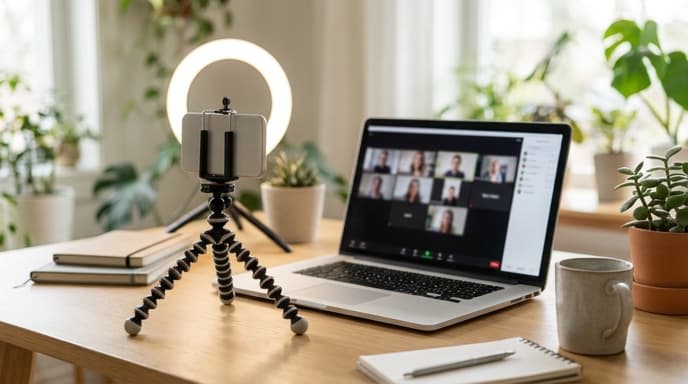
With the help of a dedicated app, you can turn your iPhone or Android phone into a high-definition webcam for your PC or Mac. This guide will show you how.
What You'll Need
Getting this set up is simple. You just need three things:
- Your Smartphone: An iPhone or Android device.
- Your Computer: A Windows PC or a Mac.
- A Connection: A USB cable to connect your phone to your computer is highly recommended for the most stable, lag-free connection. Wi-Fi is an option but can be less reliable.
- A Mount: Something to hold your phone steady. A small, inexpensive phone tripod or a gooseneck phone holder that clamps to your desk works perfectly.
Step 1: Choose and Install a Webcam App
Several apps can do this, but one of the most popular and reliable is Camo. It has a free version with excellent quality and a paid version that unlocks higher resolutions and more features. The setup process is similar for most other apps, like DroidCam or EpocCam.
- On your computer, go to the Camo website (reincubate.com/camo) and download the Camo Studio software for your operating system.
- On your phone, go to the App Store or Google Play Store and install the companion Camo app.
- Install both applications. You may need to grant camera and microphone permissions on your phone.
Step 2: Connect Your Phone and PC
Now, let's link the two devices. Using a USB cable is the best way to ensure a stable connection without lag.
- Open the Camo Studio application on your computer.
- Open the Camo app on your phone.
- Connect your phone to your computer using a high-quality USB cable.
- Your computer's Camo Studio should automatically detect your phone. You'll see the video feed from your phone's camera appear in the Camo Studio window.
Within the Camo Studio app on your PC, you can now control settings like which lens to use (front or back), zoom, and focus, all without touching your phone.
Step 3: Select Camo as Your Camera in Other Apps
Camo creates a 'virtual camera' on your system. This means you can now select it as your video source in almost any program that uses a webcam.
- In OBS Studio: Add a new 'Video Capture Device' source. In the device dropdown menu, select 'Camo Camera'.
- In Discord: Go to User Settings > Voice & Video. Under the 'Camera' dropdown, choose 'Camo Camera'.
- In Zoom or Google Meet: Go to the video settings before or during a call and switch your camera source to 'Camo Camera'.
The video feed from your phone will now be used by the application, giving you a significantly clearer and more vibrant image.
Tips for the Best Quality
- Use the rear camera: Your phone's main rear camera is almost always much better than its front-facing selfie camera.
- Lighting is key: Even a great camera needs good light. Position a lamp or a window in front of you, not behind you.
- Positioning: Mount your phone at or slightly above eye level for the most flattering angle. Placing it right next to your monitor works well.
Frequently Asked Questions
Is using my phone as a webcam free?
Many apps, including Camo, have very capable free tiers that are more than enough for most users. They typically limit the resolution to 720p or 1080p and may place a small watermark. Paid versions unlock higher resolutions and advanced controls.
Will this drain my phone's battery?
When connected via USB, your computer will typically provide enough power to keep your phone charged while it's in use, so battery drain isn't a concern.
Can I do this over Wi-Fi?
Yes, most webcam apps support a Wi-Fi connection. However, it can be prone to lag, stuttering, or disconnection, especially on a congested network. A USB cable provides a much more reliable experience.
Key Takeaways
- You can use your smartphone's superior camera as a high-quality webcam for your PC or Mac.
- Apps like Camo make the process simple: install software on your PC and a companion app on your phone.
- A wired USB connection is recommended for the most stable, lag-free video stream.
- Once set up, you can select the new 'virtual camera' in apps like OBS, Discord, and Zoom.
- Good lighting and proper camera placement are crucial for getting the best possible image.
Related Reading
- How to Set Up a Second Monitor for Your Gaming PC
- Getting More FPS: How to Optimize Discord for Gaming
- A Guide to Earning and Using Twitch Channel Points