You don't need a dedicated handheld to play your favorite PC games away from your desk. If you have a decent home Wi-Fi network, you can use Steam Link to stream games from your gaming PC directly to your phone, tablet, or smart TV. It's free, easy to set up, and a great way to enjoy your library from anywhere in the house.
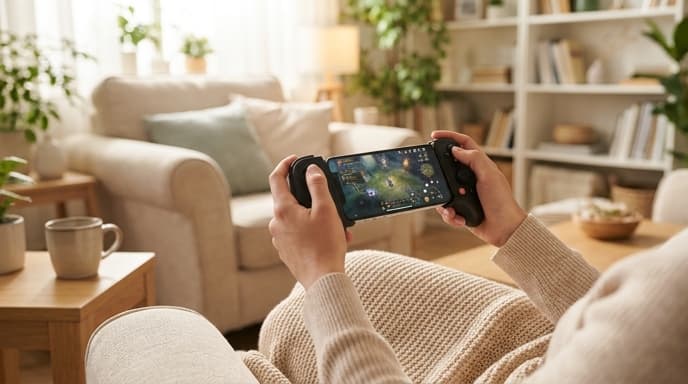
This guide will show you exactly how to get it running, from configuring your PC to optimizing the stream for the best possible experience.
What You'll Need
Before you start, make sure you have everything on this list. A strong network is the most important part.
- A host computer running Steam (Windows, macOS, or Linux).
- A mobile device (Android or iOS) or other device capable of running the Steam Link app.
- A fast and stable home network. For best results, connect your host PC to your router via an Ethernet cable. A 5 GHz Wi-Fi connection is highly recommended for the client device.
- A controller. While you can use touch controls, most PC games are unplayable without a physical controller. A Bluetooth controller like an Xbox or PlayStation controller works perfectly.
Step 1: Enable Remote Play on Your PC
First, you need to tell your main Steam client that it's okay to stream games to other devices. This is a simple one-time setting.
- Open the Steam client on your computer.
- In the top-left corner, click on Steam > Settings.
- In the Settings window, navigate to the Remote Play tab on the left.
- Check the box for Enable Remote Play.
- You can review the advanced options here, but the defaults are usually fine to start with. You can change things like streaming resolution and bandwidth limits later if you encounter issues.
Step 2: Install and Connect the Steam Link App
Now it's time to set up the device you want to stream to. For this guide, we'll focus on a smartphone.
- Download the free Steam Link app from the Google Play Store or Apple App Store.
- Open the app and connect your Bluetooth controller to your phone if you haven't already. The app will guide you through testing the controller.
- The app will scan your local network for computers running Steam. Your host PC should appear in the list. Tap it.
- A four-digit PIN will be displayed on your phone. Enter this PIN into the authorization dialog that pops up on your host PC's Steam client.
- Once paired, the app will test the network connection. If it's successful, you're ready to go!
Step 3: Start Streaming
From the main screen of the Steam Link app, tap the large Start Playing button. This will launch Steam's Big Picture Mode on your PC and stream it directly to your device. From here, you can browse your library, chat with friends, and launch any game you own, just as if you were sitting at your desk.
Tips for a Smooth Streaming Experience
- Use Ethernet: We can't stress this enough. Connecting your PC to the router with a physical cable eliminates a huge potential source of lag and instability.
- Choose 5 GHz Wi-Fi: If you must use Wi-Fi on your client device, make sure it's connected to your router's 5 GHz band, not the 2.4 GHz band. It's faster and less prone to interference.
- Lower the Resolution: If your stream is choppy, go into the Steam Link app's streaming settings and lower the resolution from 1080p to 720p. This significantly reduces the bandwidth needed.
- Close Background Apps: Make sure no other devices on your network are hogging bandwidth, like streaming 4K video or downloading large files.
Frequently Asked Questions
Can I use Steam Link outside my home?
Yes, it's possible, but performance will vary wildly depending on the speed and latency of your home internet's upload speed and the network you're connecting from. In-home streaming is its primary and most reliable use case.
Does this use my PC's hardware?
Yes. The game is running entirely on your host PC. Your phone or tablet is just acting as a remote display and controller input. This means you can play graphically demanding games on a low-powered device.
What's the difference between Steam Link and GeForce Now?
Steam Link streams from your own PC in your home. Cloud gaming services like GeForce Now or Xbox Cloud Gaming stream from powerful servers over the internet, so you don't need to own a gaming PC.
Key Takeaways
- Steam Link lets you stream games you own from your PC to another device on your home network.
- For the best experience, connect your host PC to your router via an Ethernet cable.
- Enable 'Remote Play' in your desktop Steam settings before you begin.
- Download the free Steam Link app on your phone or tablet and pair it with your PC.
- A Bluetooth controller is essential for playing most PC games effectively on a mobile device.
Related Reading
- How to Check Your PC's CPU and GPU Temperatures
- What Is Steam Families and How Does It Change Game Sharing?
- A Beginner's Guide to Setting Up a Plex Media Server