Adding a second monitor to your gaming setup is one of the best upgrades you can make. It gives you a dedicated space for other applications, so you can keep an eye on Discord chat, monitor your stream's health, or follow a guide without ever having to Alt-Tab out of your game. The process is straightforward and only takes a few minutes.
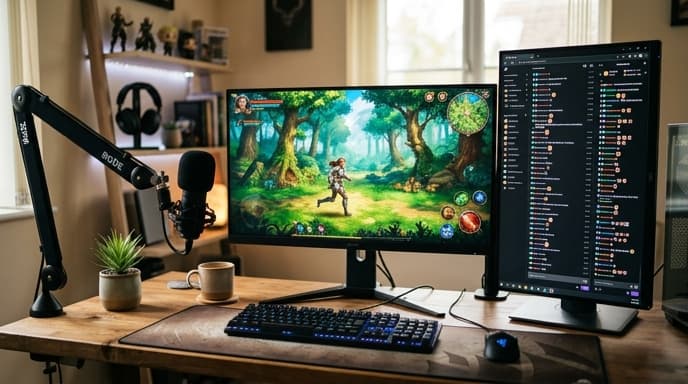
This guide will walk you through how to connect and set up a second monitor on a PC running a modern version of Windows.
Step 1: Check Your Ports and Connect the Monitor
First, look at the back of your computer. You need to find the video output ports on your graphics card (GPU), not the ones on your motherboard I/O panel. Using the GPU ports ensures you get the best performance for your displays.
Your GPU will likely have a mix of these ports:
- DisplayPort: The modern standard for high refresh rate gaming monitors. It looks like a rectangle with one corner cut off.
- HDMI: Very common and versatile, looks like a wider, thinner USB port.
- DVI: An older standard, larger and often white, with screw holes.
Connect your second monitor to a free port on your graphics card using the appropriate cable. Then, plug in the monitor's power cord and turn it on.
Step 2: Configure the Display in Windows
Once the monitor is connected and powered on, Windows should automatically detect it. You'll likely see your desktop background appear on the second screen, but you'll need to configure how it works.
- Right-click on your desktop and select Display settings.
- You should see two boxes labeled '1' and '2', representing your two monitors. If you don't see the second monitor, click the Detect button.
- Click Identify to briefly show a large number on each screen so you know which is which. You can drag and drop the boxes to match the physical arrangement of your monitors on your desk. This ensures your mouse moves correctly between them.
- Scroll down to the Multiple displays dropdown menu. You have a few options, but for gaming, you almost always want Extend these displays. This creates one large desktop that spans both screens.
- Select your main gaming monitor (usually '1') and scroll down to check the box that says Make this my main display. This ensures new apps and games open on the correct screen.
Step 3: Adjust Resolution and Refresh Rate
While still in Display settings, it's important to make sure each monitor is running at its best settings.
- Select one of your monitors at the top of the Display settings window.
- Scroll down and check its Display resolution. It should be set to the 'Recommended' native resolution.
- Click on Advanced display settings. Here you can verify and change the Refresh rate. Make sure your gaming monitor is set to its highest possible refresh rate (e.g., 144Hz, 240Hz).
- Go back and repeat the process for your second monitor.
Frequently Asked Questions
Can I use two monitors with different resolutions or refresh rates?
Yes, absolutely. Windows manages each monitor's settings independently. You can have a 4K, 144Hz gaming monitor as your main display and a standard 1080p, 60Hz monitor as your secondary without any issues.
Will a second monitor lower my gaming performance (FPS)?
If you are just displaying a static window like Discord or a web page on the second monitor, the performance impact is typically negligible, often just a few FPS at most. However, playing a video or running another graphically intensive application on the second screen while gaming can have a more noticeable impact.
How do I get my mouse back from a full-screen game?
Many modern games run in a 'borderless windowed' mode, which allows your mouse to move seamlessly to the second monitor. If a game is in exclusive 'full-screen' mode, you may need to Alt-Tab to unlock the mouse cursor.
Key Takeaways
- Connect your second monitor to a port on your dedicated graphics card, not your motherboard.
- In Windows Display settings, use the 'Extend these displays' option to create a single large desktop.
- Arrange the monitor icons in the settings to match their physical layout on your desk.
- Set your main gaming screen as the 'main display' so games launch on it by default.
- Always check that each monitor is set to its correct native resolution and maximum refresh rate.
Related Reading
- Getting More FPS: How to Optimize Discord for Gaming
- How to Clear the Cache on Your PS5, Xbox, and Nintendo Switch