Over time, your gaming console stores temporary files and data in a cache to help games and apps load faster. While this is normally a good thing, this cache can sometimes become corrupted, leading to slowdowns, game crashes, sign-in errors, or other strange behavior.
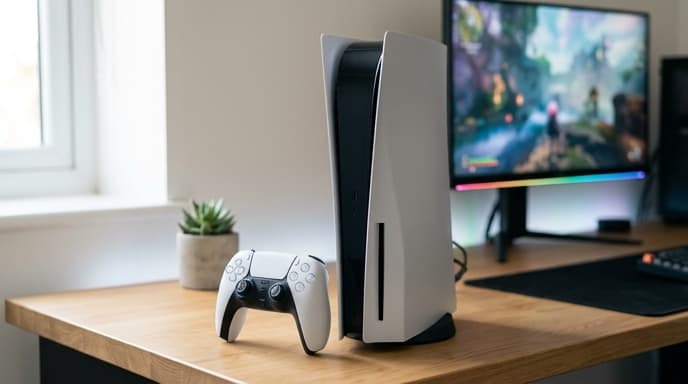
Clearing the cache is a simple and safe troubleshooting step that removes these temporary files without deleting your saved games, downloaded content, or personal settings. Here’s how to do it for the PlayStation 5, Xbox Series X|S, and Nintendo Switch.
How to Clear the Cache on PlayStation 5
The PS5 has a built-in option to clear the cache in Safe Mode. This process also rebuilds the database, which helps organize the files on your console's drive and can resolve a variety of issues.
- Turn off your PS5 completely. Do not enter Rest Mode. To do this, press the PlayStation button on your controller, go to the Power icon, and select Turn Off PS5.
- Once the console is off and the lights have stopped blinking, press and hold the power button on the console itself.
- Keep holding it until you hear a second beep (this takes about seven seconds). The first beep happens when you first press it.
- Release the button after the second beep. Your PS5 will start in Safe Mode.
- Connect your DualSense controller to the console using a USB cable and press the PS button.
- From the Safe Mode menu, select option 5: Clear Cache and Rebuild Database.
- On the next screen, choose Clear System Software Cache.
- Confirm your choice and let the console restart. The process is very quick.
How to Clear the Cache on Xbox Series X|S
For the Xbox, clearing the cache is done through a process called a 'power cycle.' This fully shuts down the console and clears out all temporary files from memory.
- Press and hold the Xbox button on the front of your console for about 10 seconds. This will force a full shutdown.
- Wait for the console to turn off completely.
- Unplug the power cord from the back of the Xbox. This is a critical step.
- Wait for at least 30-60 seconds. This allows the power supply to reset and clears the cache.
- Plug the power cord back in and wait for the light on the power brick to turn from white to orange (if applicable).
- Turn your Xbox back on using the Xbox button on the console or your controller. You should see the green Xbox boot-up screen, which indicates a cold boot.
How to Clear the Cache on Nintendo Switch
The Nintendo Switch has a specific option in its system settings to clear the cache for individual user profiles. This does not delete save data.
- From the HOME Menu, select System Settings.
- Scroll down and select System from the menu on the left.
- Select Formatting Options.
- Choose Clear Cache.
- Select the user profile for which you want to clear the cache, then follow the on-screen instructions to complete the process.
Frequently Asked Questions
Will clearing the cache delete my games or save files?
No. Clearing the cache only removes temporary, non-essential data. Your installed games, applications, save data, and profile settings will not be affected on any of the consoles listed.
How often should I clear my console's cache?
You don't need to do it regularly. Only clear the cache when you are experiencing issues like slow performance, application crashes, or sign-in problems. It's a troubleshooting step, not routine maintenance.
What's the difference between clearing cache and a factory reset?
Clearing the cache removes temporary files. A factory reset erases all your personal data, games, and settings, returning the console to the state it was in when you first bought it. A factory reset is a last resort.
Key Takeaways
- Clearing your console's cache is a safe way to fix many common performance issues.
- The process does not delete your saved games, downloads, or personal settings.
- For PS5, use the 'Clear System Software Cache' option in Safe Mode.
- For Xbox Series X|S, perform a full power cycle by shutting down and unplugging the console.
- For Nintendo Switch, use the 'Clear Cache' option found in the System Settings menu.
Related Reading
- How to Set Up a Second Monitor for Your Gaming PC
- Getting More FPS: How to Optimize Discord for Gaming