Your PC's processor (CPU) and graphics card (GPU) generate a lot of heat when they're working hard, especially during gaming. If that heat isn't effectively removed, the components will get too hot, forcing them to slow down to protect themselves—a process called thermal throttling. This leads to stuttering and lower frame rates. In extreme cases, chronic overheating can even shorten the lifespan of your hardware.
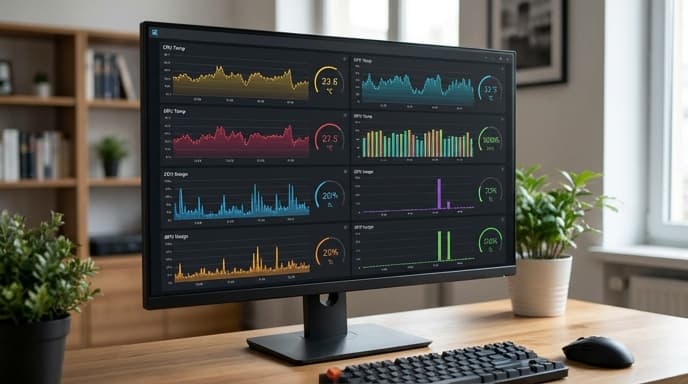
Learning how to monitor your temperatures is a critical skill for any PC gamer. It allows you to spot problems early and ensure you're getting the full performance you paid for.
How to Monitor Your Temperatures
While Windows has some limited temperature monitoring, the best way to get a detailed, real-time view of your system is with free third-party software. Here are two of the most popular choices:
- HWMonitor: This is a simple, lightweight tool that gives you a detailed list of all the sensor readings in your PC, including temperatures, fan speeds, and power usage for your CPU, GPU, and motherboard. Just download, install, and run it to see the data.
- MSI Afterburner: While it's known as a tool for overclocking, Afterburner has a fantastic on-screen display (OSD) feature. You can configure it to show your CPU and GPU temperatures directly on your screen while you're in a game. This is the best way to see how your hardware behaves under a real gaming load.
To get started, download and install one of these programs. It's a good idea to check your temperatures both when your PC is idle (just sitting on the desktop) and while playing a demanding game for at least 15 minutes.
What Are Safe Temperature Ranges?
Temperatures can vary a lot depending on the specific component, the cooler you're using, and the ambient temperature of your room. However, here are some general guidelines for a gaming PC:
- Idle Temperatures (on the desktop): Your CPU and GPU should typically idle somewhere between 30°C and 50°C.
- Load Temperatures (while gaming): This is the number that really matters. Under a heavy gaming load, a safe temperature for both your CPU and GPU is generally considered to be below 85°C.
If your components are consistently running in the 90°C to 100°C range while gaming, you have an overheating problem that needs to be addressed.
What to Do if Your PC Is Overheating
If your temperatures are too high, don't panic. The cause is usually simple to fix. Work through this checklist.
- Clean Your PC: The most common cause of overheating is dust buildup. Dust clogs heatsinks and fans, trapping heat. Unplug your PC, take it outside, and use a can of compressed air to blow the dust out of all fans, filters, and heatsinks.
- Check Your Fans: While the case is open, make sure all your fans are spinning when the computer is on—including the fans on your CPU cooler and your graphics card.
- Improve Airflow: Ensure your PC has room to breathe. Don't keep it in a cramped cabinet or pushed directly against a wall. Also, check your case fan configuration. You should have some fans pulling cool air in (intake) and others pushing hot air out (exhaust).
- Re-apply Thermal Paste: The thermal paste between your CPU and its cooler can dry out and lose effectiveness over time (typically after 3-5 years). If your PC is older and the CPU is running hot, replacing the thermal paste can make a huge difference.
Frequently Asked Questions
Is it normal for temperatures to spike?
Yes, it's normal to see temperatures jump up and down quickly as the CPU or GPU load changes, like when a game is loading. You should be more concerned with the sustained temperature during a long gaming session.
My laptop gets really hot. Is that okay?
Gaming laptops are designed to run hotter than desktops due to their compact size. It's not uncommon for their CPUs and GPUs to reach the 90-95°C range under load. However, if you're experiencing performance throttling, cleaning the fans and ensuring the vents aren't blocked is still crucial.
What is a 'Tj. Max' temperature?
This is the maximum safe operating temperature specified by the manufacturer (e.g., Intel or AMD). Your CPU will automatically throttle its performance or even shut down if it reaches this temperature to prevent damage.
Key Takeaways
- Overheating causes performance loss (thermal throttling) and can reduce the lifespan of your components.
- Use free software like HWMonitor or MSI Afterburner to check your CPU and GPU temperatures.
- While gaming, sustained temperatures below 85°C are generally considered safe for most CPUs and GPUs.
- The most common cause of overheating is dust buildup; clean your PC regularly.
- Ensure all your fans are working and that your case has good airflow.
Related Reading
- Cable Management Tips for a Cleaner, Cooler Gaming PC Setup
- How to Safely Update Your Graphics Card Drivers (NVIDIA & AMD)
- A Safe Guide to Cleaning Your Mechanical Keyboard