If you've invested in a good gaming monitor, you're only getting half the value if you're using it straight out of the box. Factory settings are designed to look flashy in a store, not to show you accurate colors. Calibrating your display ensures you see the game world as the artists intended, with deep blacks, vibrant colors, and properly balanced brightness.
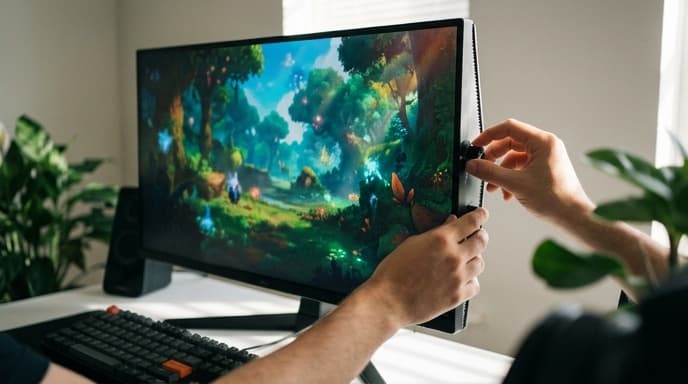
This guide will walk you through the process using free, accessible tools. It takes only a few minutes and can make a huge difference in visual quality, helping you spot details in dark shadows or appreciate a colorful vista.
Use Your Operating System’s Built-in Tools
Both Windows and macOS have built-in utilities that guide you through the basics of calibration. This is the best place to start.
For Windows 10 and 11, follow these steps:
- Press the Windows key and type “Calibrate display color,” then press Enter.
- The tool will open with instructions. Make sure to read them on your primary monitor.
- You will be guided through setting gamma, which affects the luminance of mid-tones. Adjust the slider until the small dots in the center are barely visible.
- Next, you'll adjust brightness. Use your monitor's physical buttons for this. Lower the brightness until you can just distinguish the shirt from the suit in the test image, without losing the 'X' in the background.
- Then, adjust contrast, again using your monitor's buttons. Increase it as high as you can without losing the wrinkles and buttons on the white shirt in the image.
- Finally, you'll adjust the color balance by moving red, green, and blue sliders to remove any color cast from the gray bars.
- Once finished, you can compare your new calibration with the old one. If you're happy, save it.
For macOS, the process is similar. Go to System Settings > Displays, then find the “Calibrate…” button, which will launch the Display Calibrator Assistant.
Try Free Online Calibration Tools
After using your OS tool, you can fine-tune the results with a web-based test. Websites like PhotoFriday or Lagom LCD test pages provide a suite of test patterns that help you check for issues your basic calibration might have missed.
These sites have patterns for:
- Black level: Can you distinguish between different shades of black? If not, your brightness might be too low.
- White saturation: Can you see different shades of white? If they all blend together, your contrast may be too high.
- Gradient banding: A smooth color gradient should not have visible vertical lines or 'bands' in it.
- Response time: This tests for ghosting, which is important for fast-paced games.
Use these patterns to make small adjustments to the settings you configured in the first step.
What About Hardware Calibrators?
For most gamers, the steps above are more than enough. However, if you are also a content creator, photographer, or video editor, a hardware calibrator is a worthwhile investment. Devices like the Datacolor SpyderX or Calibrite ColorChecker are small colorimeters you hang over your screen. They read colors directly from the display and automatically create a highly accurate color profile for your system. This is the only way to get truly professional-grade color accuracy, but it's overkill for gaming alone.
Frequently Asked Questions
Why do my games look washed out?
Washed-out colors are often caused by incorrect brightness, contrast, or gamma settings. High brightness and low contrast can make blacks look gray. Running through the calibration steps should fix this.
Should I use my monitor's 'Game Mode'?
Often, no. 'Game Mode' presets typically increase brightness, sharpness, and color saturation to unnatural levels. While this might make things 'pop,' it sacrifices color accuracy. A custom calibration is almost always better.
How often should I calibrate my monitor?
For general gaming, calibrating it once when you get it is usually fine. If you do color-sensitive work, you might re-calibrate every few months, as the color output of a monitor can drift over time.
Key Takeaways
- Calibrating your monitor ensures you see games with the colors and tones the developers intended.
- Start with your operating system's built-in tools: “Calibrate display color” on Windows or the Display Calibrator Assistant on macOS.
- Adjust gamma, brightness, and contrast in that order for the best results.
- Use free online test patterns to check black levels, white saturation, and gradients.
- Avoid using generic 'Game Mode' presets, as they often sacrifice accuracy for overly saturated visuals.
Related Reading
- How to Set Up a Second Monitor for Your Gaming PC
- Getting More FPS: How to Optimize Discord for Gaming
- How to Safely Update Your Graphics Card Drivers (NVIDIA & AMD)