You just got a new laptop or phone, but the app list is already full of programs you've never heard of—free trials for antivirus software, branded utility apps, and random games. This pre-installed software, often called 'bloatware,' clutters your device, consumes storage space, and can even slow down performance.
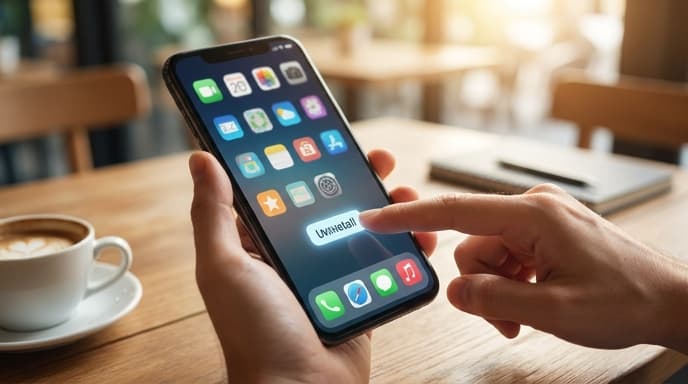
Removing it is a straightforward process that can make your device feel cleaner and faster. Here’s how to do it safely on Windows and Android.
What Is Bloatware?
Bloatware is any software you don't want that comes pre-installed on a new device. Manufacturers and carriers often get paid to include these apps. While some might be genuinely useful, most are unnecessary. They can be:
- Trial versions: Software that works for a limited time before asking you to pay.
- Redundant utilities: A manufacturer's photo gallery app when the default one works fine.
- Third-party apps: Social media or shopping apps that the manufacturer has a deal with.
How to Remove Bloatware from a Windows PC
Windows makes it easy to uninstall most programs through the Settings menu.
- Click the Start button and select the gear icon to open Settings.
- Go to the Apps section, then select Apps & features.
- You'll see a list of all installed software. Scroll through the list and identify programs you don't recognize or need. If you're unsure what something is, search its name online before uninstalling.
- Click on an app you want to remove, and an Uninstall button will appear. Click it and follow the prompts.
- Repeat this process for all the bloatware you want to remove. Restart your PC when you're done.
How to Remove Bloatware from an Android Phone
The process on Android is similar, though some pre-installed apps can only be disabled, not fully uninstalled.
- Open the Settings app on your phone.
- Tap on Apps or Application Manager (the name varies by manufacturer).
- You may need to tap See all apps to view the complete list.
- Scroll through and find an app you want to remove.
- Tap on it. If there is an Uninstall button, use it. The app will be removed completely.
- If the 'Uninstall' button is grayed out or missing, you will likely see a Disable button instead. Disabling an app prevents it from running, receiving updates, or appearing in your app drawer. This is the next best thing to a full uninstall.
Frequently Asked Questions
Is it safe to remove bloatware?
Yes, for the most part. It is safe to remove third-party software like trial games, shopping apps, or alternative web browsers. Be cautious about removing apps with 'Android' or 'Windows' in the name, or apps from your device manufacturer that might control specific hardware features. When in doubt, a quick web search will tell you if an app is safe to remove.
Why can't I uninstall some apps on Android?
Some apps are installed on the system partition of the phone's storage, which users can't modify without 'rooting' the device. These are often core apps from the manufacturer or your mobile carrier. Disabling them is the safest and easiest way to deal with them.
Does removing bloatware void my warranty?
No. Simply uninstalling or disabling software does not void your device's warranty.
Key Takeaways
- Bloatware is unwanted, pre-installed software that can slow down your device and take up space.
- On Windows, use the 'Apps & features' section in Settings to find and uninstall programs.
- On Android, use the 'Apps' section in Settings to uninstall or disable pre-installed applications.
- If you cannot uninstall an app on Android, disabling it is the best alternative.
- If you are unsure what an application does, search for its name online before removing it.
Related Reading
- How to Use Focus Modes to Reduce Distractions on Your Phone
- How to Audit and Manage App Permissions on Your Phone