When you install a new app, it often asks for permission to access parts of your phone like your camera, microphone, contacts, and location. It's easy to tap 'Allow' without thinking, but over time, you can grant sensitive access to apps that don't truly need it. A calculator app, for example, has no reason to access your contacts.
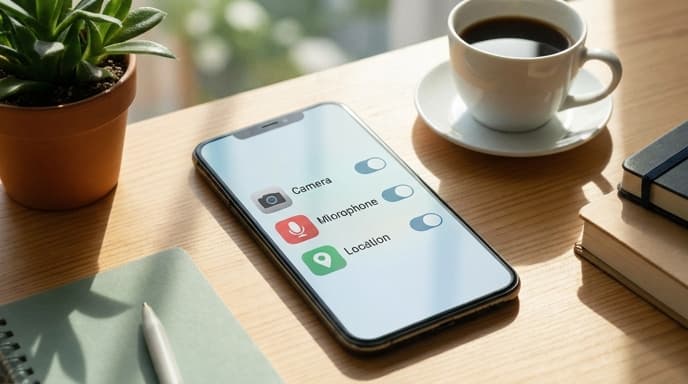
Regularly reviewing these permissions is a critical step in protecting your privacy. Here's how to see exactly what your apps are doing and take back control on both iOS and Android.
How to Manage App Permissions on iOS
Apple's iOS provides a clear, centralized place to see which apps can access your data.
- Open the Settings app.
- Scroll down and tap on Privacy & Security.
- Here you'll see a list of permission types, such as Location Services, Contacts, Microphone, and Camera.
- Tap on any category, like Microphone, to see a list of all the apps that have requested access to it.
- You can toggle access on or off for each app in the list.
iOS also has an App Privacy Report in this same section, which shows you how often apps have accessed your data and sensors over the last seven days.
How to Manage App Permissions on Android
Android's Permission Manager gives you a similar overview, letting you see permissions by type.
- Open the Settings app.
- Tap on Security & privacy (or just 'Privacy' on some phones).
- Select Permission manager.
- You will see a list of all permissions, like Camera, Location, and Microphone, along with how many of your apps have access to each.
- Tap on a permission to see which apps are allowed, which are allowed only while in use, and which are denied.
- Tap on any app in the list to change its permission level.
Key Permissions to Watch For
While all permissions are worth reviewing, these are some of the most sensitive:
- Location: Does a simple game really need to know where you are at all times? Choose 'While Using the App' or 'Ask Next Time' instead of 'Always'.
- Microphone and Camera: These should be reserved for apps that obviously need them, like video conferencing, social media, or camera apps.
- Contacts: Be very cautious about which apps you allow to read your contact list.
- Files and Media: Granting this allows an app to read, modify, or delete files on your device's storage.
Frequently Asked Questions
What if an app stops working after I revoke a permission?
This means the permission was necessary for a feature you were using. For example, if you deny camera access to Instagram, you won't be able to take photos in the app. You can always go back into settings and grant the permission again if you choose to.
What does 'Allow only while using the app' mean?
This is a great privacy-friendly option. It means the app can, for example, use your location when it's open on your screen, but it can't track you in the background when you're doing something else.
Why do apps ask for so many permissions?
Sometimes it's for legitimate features, but other times it's for data collection for advertising or other purposes. The golden rule is to grant the fewest permissions an app needs to function as you want it to.
Key Takeaways
- Regularly audit your app permissions through the 'Privacy & Security' menu in your phone's settings.
- Pay close attention to sensitive permissions like Microphone, Camera, Location, and Contacts.
- If an app requests a permission that doesn't seem related to its function, it's safest to deny it.
- Choose the 'Allow only while using the app' option whenever possible to prevent background tracking.
- You can always grant a permission later if you find that revoking it has broken a feature you need.
Related Reading
- How to Use Focus Modes to Reduce Distractions on Your Phone
- Beyond 'Password123': A Gamer's Guide to Using a Password Manager