Your phone is an essential tool, but its constant pings and pop-ups can be a major source of distraction. Whether you're trying to work, study, or just have a quiet evening, Focus Modes allow you to create custom 'Do Not Disturb' profiles that filter out everything you don't want to see.
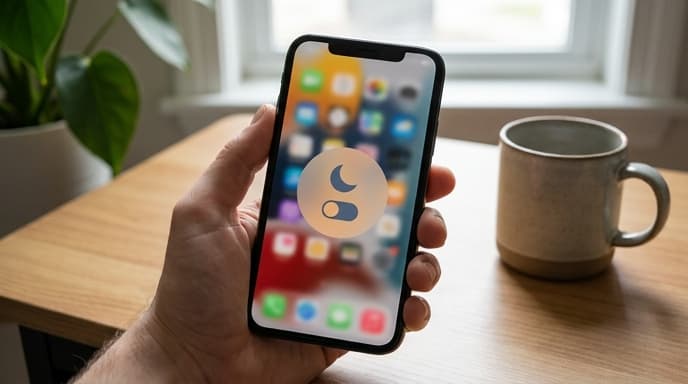
Here’s how to set up and use these features on both iPhone and Android to create dedicated modes for work, gaming, reading, or anything else.
How to Set Up Focus on iOS
Apple's Focus feature is highly customizable, letting you control which people and apps can reach you, and even changing your Home Screen to match your activity.
- Open the Settings app and tap on Focus.
- You'll see default options like Do Not Disturb, Work, and Sleep. Tap the plus (+) icon in the top right to create a new one.
- Choose a template (like Gaming or Reading) or create a Custom focus. Give it a name and icon.
- Next, you'll choose your notification settings. Under Silence Notifications, you can select specific People and Apps that are allowed to send you notifications when this focus is active. Everyone and everything else will be silenced.
- You can also customize your screens by linking a specific Lock Screen or Home Screen page to the focus, hiding distracting apps.
- Activate your focus from the Control Center or schedule it to turn on automatically at certain times or locations.
How to Set Up Focus Mode on Android
On most Android devices, Focus Mode is part of the Digital Wellbeing suite of tools. It's more about blocking apps than filtering notifications.
- Open Settings and go to Digital Wellbeing & parental controls.
- Tap on Focus mode.
- You can select from a list of your installed apps. Choose all the apps you find distracting (e.g., social media, news, games).
- Once your list is ready, you can tap Turn on now to start a session. While active, the selected apps will be grayed out on your home screen, and you won't receive notifications from them.
- You can also Set a schedule for your Focus Mode to turn on and off automatically during your work hours or in the evening.
Advanced Customization and Tips
Take your focus a step further with these options:
- Automations: On iOS, you can set a Focus to turn on automatically when you open a specific app. For example, a 'Reading' focus can activate whenever you open your Kindle app.
- Allow Repeated Calls: Both platforms have an option to allow a second call from the same person within a few minutes to come through, ensuring you don't miss an emergency.
- Share Focus Status: On iOS, you can let people in Messages know that you have notifications silenced, which can manage their expectations for a quick reply.
Frequently Asked Questions
Will I miss important calls or messages?
Not if you configure it correctly. You can create an 'allow list' of important contacts (like family members) whose calls and messages will always come through, even when a focus is active.
What happens to the notifications I miss?
They aren't lost forever. When you turn off the Focus Mode, all your silenced notifications will appear in your Notification Center for you to review.
Does this use extra battery?
No. In fact, by reducing the number of notifications that light up your screen, using a Focus Mode might even save a small amount of battery life.
Key Takeaways
- Use iOS Focus or Android's Focus Mode to temporarily silence notifications from distracting apps and people.
- On iOS, you can create custom modes for different activities like 'Work' or 'Gaming' and allow specific contacts and apps to notify you.
- On Android, Focus Mode primarily works by pausing apps you select, preventing you from opening them and seeing their notifications.
- Schedule your Focus Modes to turn on automatically based on time, location, or app usage.
- Silenced notifications are not deleted; they are waiting for you in your notification summary when you disable the mode.
Related Reading
- How to Find and Remove Bloatware From Your Devices
- How to Audit and Manage App Permissions on Your Phone