Your gaming account is more than just a login; it's a collection of games, save files, and sometimes valuable in-game items. Protecting it with only a password leaves it vulnerable. Enabling two-factor authentication (2FA) adds a crucial second layer of security that makes it nearly impossible for someone else to access your account, even if they know your password.
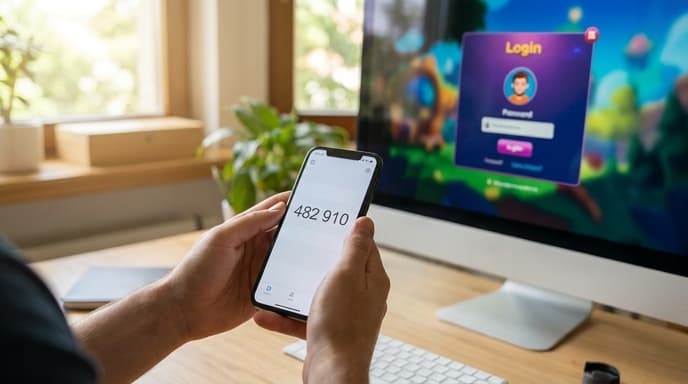
Here’s how to set up this essential security feature on the most popular gaming platforms.
What Is Two-Factor Authentication (2FA)?
2FA requires you to provide two pieces of evidence to prove your identity when logging in. The first is something you know (your password). The second is something you have (a temporary code from your phone).
This means a hacker would need not only your password but also physical access to your phone to get into your account. The most common form of 2FA uses an authenticator app (like Google Authenticator or Authy) on your smartphone to generate a time-sensitive 6-digit code.
How to Enable 2FA on Steam (Steam Guard)
Steam's 2FA system, Steam Guard, is best used through the official mobile app.
- Download the Steam mobile app on your phone and log in.
- Tap the menu icon (three lines) and select Steam Guard.
- Select Add Authenticator and follow the on-screen instructions. You'll need to provide a phone number to associate with your account.
- Steam will provide you with a recovery code. Write this down and store it somewhere safe. This is your backup if you lose your phone.
- Once set up, the app will generate a new code every 30 seconds. You'll enter this code when logging in to Steam on a new device.
How to Enable 2FA on Epic Games
Epic Games encourages 2FA by often rewarding players with free in-game items for enabling it.
- Log in to your Epic Games account on their website.
- Go to Account Settings, then click on the Password & Security tab.
- Scroll down to the 'Two-Factor Authentication' section.
- You have three choices: Authenticator App (most secure), SMS Authentication, or Email Authentication. We recommend the authenticator app.
- Select 'Authenticator App' and follow the prompts to scan a QR code with your chosen authenticator app.
- Enter the 6-digit code from your app to confirm, and you're all set.
How to Enable 2FA on PlayStation Network
Sony calls this feature 2-Step Verification (2SV) and it works similarly.
- Log in to your PlayStation Network account on a web browser.
- Navigate to Security in the account management settings.
- Next to '2-Step Verification Status', click Edit.
- Choose your verification method. You can choose to receive a text message (SMS) or use an authenticator app. The app is generally considered more secure.
- Follow the instructions to link your phone number or scan the QR code with your authenticator app.
- Enter the verification code to activate 2SV. Be sure to save the backup codes Sony provides.
Frequently Asked Questions
Which is better: authenticator app or SMS?
Authenticator apps are more secure. Hackers can sometimes trick mobile carriers into swapping your phone number to a new SIM card (a 'SIM-swap' attack), allowing them to receive your SMS codes. Codes from an authenticator app are generated directly on your device and are not vulnerable to this.
What happens if I lose my phone?
This is why you must save the backup or recovery codes that each service provides during setup. These codes are your emergency key to get back into your account and set up 2FA on a new device.
Do I have to enter a code every single time I log in?
No. Most services will allow you to 'trust' a device (like your home PC or console). Once trusted, you won't need to enter a 2FA code again on that specific device unless you change your password or log out.
Key Takeaways
- Two-factor authentication adds a critical security layer by requiring a code from your phone in addition to your password.
- Using an authenticator app is the most secure method for 2FA.
- Enable Steam Guard through the Steam mobile app for easy access to login codes.
- Epic Games and PlayStation Network both offer 2FA setup in the 'Security' section of your account settings online.
- Always save the backup/recovery codes provided during setup and store them in a safe place.
Related Reading
- Beyond 'Password123': A Gamer's Guide to Using a Password Manager
- How to Audit and Manage App Permissions on Your Phone