It happens to everyone: the remote vanishes right when you want to watch something. Instead of turning the room upside down, you can use the device that's almost always with you: your smartphone. Official apps for most modern TVs and game consoles can turn your phone into a powerful remote control.
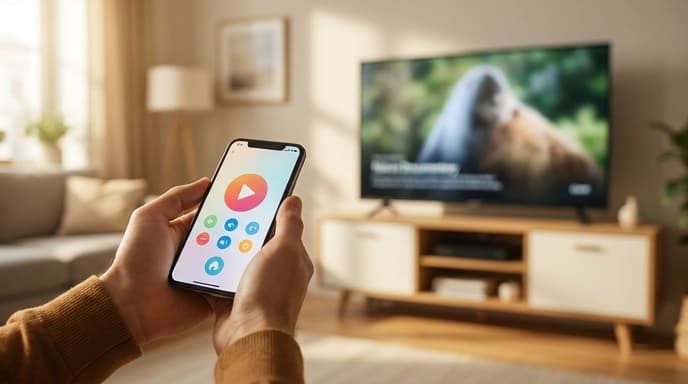
As long as your phone and your entertainment device are on the same Wi-Fi network, setup is usually as simple as downloading an app and pairing it.
For Google TV and Android TV
If you have a Chromecast with Google TV, or a smart TV from brands like Sony or Hisense that runs Android TV, you can use the built-in remote feature in the Google TV app.
- Download the Google TV app from the App Store (iOS) or Play Store (Android).
- Open the app and tap the Remote icon.
- The app will search for devices on your network. Select your TV or streaming device.
- A pairing code will appear on your TV screen. Enter that code into your phone to connect.
- You can now use swipe gestures for navigation and your phone's keyboard for typing.
For Apple TV
For iPhone and iPad users, the Apple TV Remote is built directly into the operating system's Control Center.
- First, make sure your Apple TV is on and connected to the same Wi-Fi network as your iPhone.
- On your iPhone, go to Settings > Control Center and make sure Apple TV Remote is included in the list.
- Swipe down from the top-right of your screen to open Control Center and tap the remote icon.
- Select your Apple TV from the list. If prompted, enter the four-digit code that appears on your TV screen.
- The on-screen remote provides a trackpad for swiping, playback controls, and a button to summon Siri.
For PlayStation 4 and 5
The official PlayStation App lets you navigate your console's menus and even launch games remotely.
- Download the PS App on your phone and sign in with your PlayStation Network account.
- On your console, go to Settings > System > Remote Play and enable it. Then go to Link Devices.
- In the PS App on your phone, go to Settings > Console Management and link the console that appears.
- Once linked, you can use the app to browse the PlayStation Store and remotely download games. For direct control, you'll use the Remote Play feature, which streams the console's display to your phone.
For Xbox One and Xbox Series X/S
The Xbox app provides a full remote control interface, making it easy to navigate the dashboard.
- Download the Xbox app and sign in with your Microsoft account.
- Tap the Console icon in the top right corner of the app.
- Choose the option to Open remote control.
- If your console is on the same network, it should connect automatically. You can now use the on-screen buttons and gestures to control your Xbox.
Frequently Asked Questions
Do I need Wi-Fi for this to work?
Yes, in almost all cases, your phone and the device you want to control must be connected to the same Wi-Fi network to communicate with each other.
Can I turn my TV on with my phone?
This depends on the device. Some setups with HDMI-CEC enabled might allow your phone to wake the TV by activating the connected streaming box or console, but it often can't turn on a completely powered-down TV.
Are third-party remote apps safe?
It's always safest to use the official apps from Google, Apple, Sony, and Microsoft. Third-party apps may work, but they might also contain ads or have privacy concerns.
Key Takeaways
- Use the official Google TV, Apple Remote, PS App, or Xbox app for the most reliable and secure connection.
- Your phone and entertainment device must be on the same Wi-Fi network.
- Setup typically involves selecting your device from a list and entering a pairing code displayed on the TV.
- Using your phone's keyboard for typing in passwords and search terms is much faster than using a physical remote.
- The Apple TV remote is conveniently built into the iPhone's Control Center.
Related Reading
- How to Clear the Cache on Your PS5, Xbox, and Nintendo Switch
- Getting More FPS: How to Optimize Discord for Gaming