If you have a hard drive filled with digital movies, TV shows, and music files, you know how clunky it can be to find and play what you want. A Plex Media Server solves this problem by organizing your media into a beautiful, easy-to-navigate library and letting you stream it to virtually any device, from your TV to your phone, anywhere in the world.
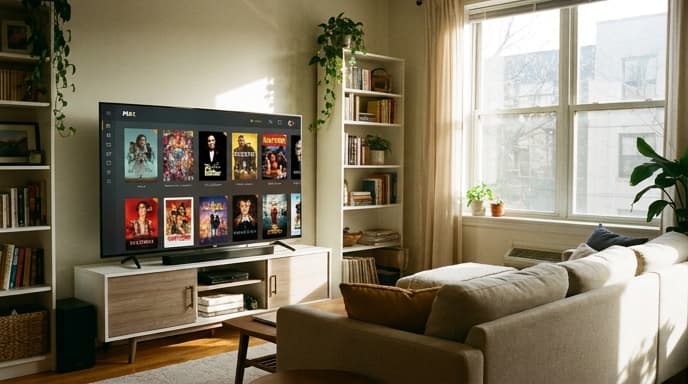
Setting up a basic Plex server is surprisingly easy and free. This guide will walk you through the essential steps to get your personal streaming service up and running.
Step 1: Choose Your Server Hardware
The Plex Media Server software can run on almost anything. For beginners, the best option is a computer that's usually on.
- A Desktop PC: An old or new desktop computer works perfectly. It doesn't need to be powerful unless you plan on having many people stream at once.
- A Laptop: A laptop can also work, but it needs to be plugged in and running for the server to be accessible.
- A NAS (Network-Attached Storage) Device: Many popular NAS devices from brands like Synology or QNAP can run Plex directly, which is a great power-efficient option.
For this guide, we'll assume you're using a Windows or Mac computer.
Step 2: Install Plex Media Server
First, you need to download the free server software from the official Plex website.
- Go to the Plex downloads page and grab the 'Plex Media Server' application for your operating system.
- Run the installer and follow the on-screen prompts. It's a standard installation process.
- Once installed, Plex will run in the background and can be accessed through a web browser. It will likely open a new tab automatically to begin setup.
Step 3: Create Your Libraries
The setup wizard will guide you through creating your server. You'll be asked to give your server a name. The most important step is adding your media.
Plex organizes content into Libraries. You'll create a separate library for each type of media you have (e.g., 'Movies', 'TV Shows').
- Click 'Add Library' and select the library type (e.g., 'Movies').
- Give the library a name and select your language.
- Click 'Browse for Media Folder' and navigate to the folder on your computer where you store your movie files. For best results, keep movies and TV shows in separate parent folders.
- Click 'Add Library'. Plex will now scan the folder, identify your files, and download all the metadata like posters, cast info, and plot summaries.
- Repeat this process for your TV shows, music, and any other media you have.
Step 4: Install Plex on Your Other Devices
Your server is now running. To watch your content, you need a Plex 'client' app on the device you want to stream to.
Simply go to the app store on your smart TV, streaming stick (like a Roku or Fire TV), smartphone, or gaming console (PlayStation and Xbox have Plex apps) and search for 'Plex'. Install the free app, sign in with the same Plex account you created for your server, and you should see your media library ready to go.
FAQ on Plex Media Server
Is Plex free?
Yes, the core functionality of setting up a server and streaming on your home network is completely free. Plex offers a paid 'Plex Pass' subscription that adds premium features like mobile downloads, live TV DVR, and more, but it's not required for a basic setup.
How should I name my files for Plex?
Plex is smart, but it works best if you follow its naming conventions. For movies, use `Movie Name (Year).ext`. For TV shows, use `Show Name/Season 01/Show Name - s01e01.ext`. This helps Plex identify everything correctly.
Can I access my media outside my home?
Yes. By default, Plex attempts to enable remote access automatically. You can check its status in Settings > Remote Access. As long as it shows a green checkmark, you can stream from your server anywhere with an internet connection.
Key Takeaways
- Plex Media Server organizes your personal media files into a user-friendly, streamable library.
- You can install the server software on a PC, Mac, or NAS device.
- Setup involves creating libraries and pointing them to the folders containing your media files.
- To watch, you install the free Plex client app on your TV, phone, or console.
- The core features of Plex are free to use.
Related Reading
- How to Set Up a Second Monitor for Your Gaming PC
- How to Audit Your Streaming Subscriptions and Save Money