You want your kids to enjoy the best of streaming, but you also want to know they aren't stumbling into content made for adults. Using the built-in parental controls on services like Netflix, Disney+, and Prime Video lets you create a safe viewing space tailored to your family's needs.
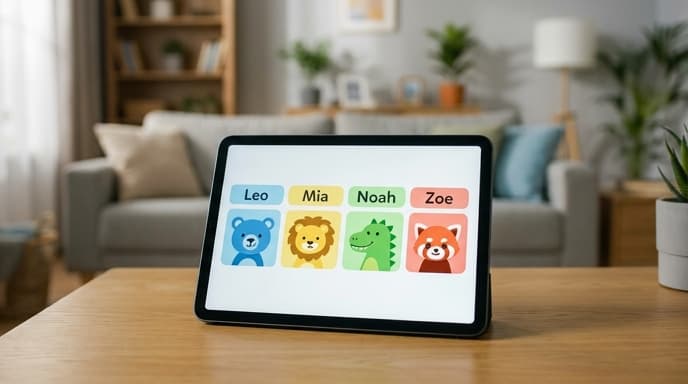
This guide will walk you through setting up profiles, restricting content by age rating, and locking those settings behind a PIN.
How to Set Controls on Netflix
Netflix offers robust controls on a per-profile basis. You'll manage these settings from a web browser, not the TV app.
- Log in to your Netflix account on a computer or mobile browser.
- Go to your Account page from the dropdown menu.
- Scroll down to the Profile & Parental Controls section and select the profile you want to manage.
- In Viewing Restrictions, you can set the maturity rating for that profile. You can restrict all content above a certain level (e.g., G, PG, PG-13).
- You can also block specific titles by name, regardless of their rating.
- To prevent changes, set a Profile Lock PIN on your own profile and others intended for adults.
How to Set Controls on Disney+
Disney+ centralizes its controls, making it simple to create a dedicated, protected space for younger viewers.
- Create a Kid's Profile: When adding a new profile, you can toggle the Kid's Profile option on. This automatically creates an easier-to-navigate interface showing only content rated G, TV-Y, TV-Y7/Y7-FV, and TV-G.
- Set Content Ratings: For standard profiles, you can select Content Rating under the profile's settings. This allows you to choose a rating like TV-14 or PG-13, and everything above it will be locked.
- Set a Profile PIN: Each profile can have its own 4-digit PIN to prevent kids from switching to an unrestricted profile.
- Enable Kid-Proof Exit: On a Kid's Profile, you can enable a feature that requires answering a simple question to switch profiles, adding another layer of protection.
How to Set Controls on Amazon Prime Video
Prime Video's controls are account-wide rather than profile-specific, affecting anyone using your account.
- Go to the Prime Video website and click the gear icon for Settings.
- Select the Parental Controls tab.
- Here, you can set a 5-digit Prime Video PIN.
- Once the PIN is set, you can enable Purchase Restrictions (to prevent accidental movie rentals or purchases) and Viewing Restrictions.
- Viewing Restrictions let you choose which age ratings require the PIN to watch (e.g., block content for ages 13+ and older). These restrictions apply across all devices signed in to your account.
Frequently Asked Questions
Can kids bypass these controls?
If you don't set a PIN on the adult profiles, a child can simply switch to one. The PIN is the most important step to making the controls effective.
Do these settings apply to all devices?
Yes, for the most part. Profile settings you change on the web for Netflix or Disney+ will apply to your smart TV, tablet, and phone. Prime Video's settings are account-wide and apply everywhere automatically.
What if I forget my PIN?
You can typically reset your parental control PIN through your main account settings, which usually involves confirming your password or receiving a reset link via email.
Key Takeaways
- Use dedicated Kid's Profiles on services like Netflix and Disney+ for a simplified, pre-filtered experience.
- Set content maturity ratings for each profile to control what shows and movies are visible.
- Always protect adult profiles and account settings with a PIN to prevent children from changing settings or switching profiles.
- Prime Video's controls are account-wide, meaning restrictions apply to every device using your account.
- Regularly review your settings, as your children grow and your viewing rules change.
Related Reading
- How to Audit Your Streaming Subscriptions and Save Money
- How to Customize Subtitles on Major Streaming Platforms