Whether you use them for accessibility, watching content in another language, or just keeping the volume down late at night, subtitles are an essential feature of streaming. But the default white text can easily get lost in a bright scene, and the size might not be right for your screen or your eyes.
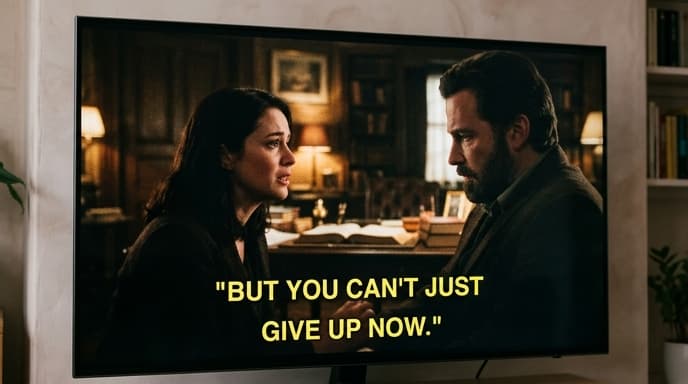
The good news is that you can customize subtitles on almost every major streaming platform. These settings are often buried in account menus rather than the video player, but once you find them, you can tailor the viewing experience to your exact needs.
Where to Find Subtitle Settings: The General Rule
Most services handle subtitle appearance in the same way: it's a profile-level setting, not a temporary one you change during playback. This means you usually need to log in to your account on a web browser to make changes that will then apply everywhere you watch, including your TV and mobile apps.
Look for menu items like:
- Account Settings
- Profiles
- Subtitle Appearance
- Caption Settings
- Accessibility
How to Customize Subtitles on Netflix
Netflix offers some of the most robust customization options. The key is that you must change them from your account page on a web browser.
- Log in to your Netflix account on a computer or mobile browser.
- Select your profile icon and go to Account.
- Choose your profile from the Profile & Parental Controls section.
- Click on Subtitle appearance.
- Here, you can change the font, text size, shadow, background color, and window color. A preview window shows you exactly how your changes will look.
- Click Save. The changes will sync to all your devices.
How to Customize Subtitles on Disney+
On Disney+, you can often change settings directly within the app on most devices, which is more convenient.
- Start playing any show or movie.
- Open the playback settings menu (it usually looks like a small gear or speech bubble icon).
- Select Subtitle Styling.
- You'll be taken to a menu where you can adjust the font, size, color, opacity, and background.
How to Customize Subtitles on Amazon Prime Video
Prime Video also lets you create and save multiple presets for subtitles, which is useful if different people in your household have different preferences.
- Go to the Prime Video website or open the app on your device.
- Navigate to the Subtitles and Captions settings. On the web, this is under Account & Settings > Subtitles. On many TV apps, it's under a general Settings menu.
- You can edit the default preset or create a new one.
- Options include text size, color, style, background, and window opacity.
- Save your preset. You can then select it from the subtitles menu during video playback.
Frequently Asked Questions
Why don't my subtitle settings save?
If you're changing settings in the video player, they are likely temporary. For permanent changes, you almost always need to go to your main account settings, preferably on a web browser.
Can I make subtitles bigger on my TV?
Yes. By changing the subtitle appearance in your account settings as described above, the changes will apply to your smart TV app, gaming console, or streaming stick.
What are the best subtitle settings for readability?
A common recommendation for high visibility is yellow text on a semi-transparent black background. This combination stands out against both light and dark scenes without obscuring too much of the picture.
Key Takeaways
- Subtitle customization is usually found in your main Account settings, not the video player.
- Making changes on a web browser is often the most reliable way to have them apply to all devices.
- You can typically change the font, size, color, shadow, and background of subtitles.
- For maximum readability, try yellow text with a semi-transparent black background.
- Services like Prime Video allow you to save multiple presets for different viewers.
Related Reading
- How to Audit Your Streaming Subscriptions and Save Money
- A Guide to Understanding Video Streaming Quality